Zooz
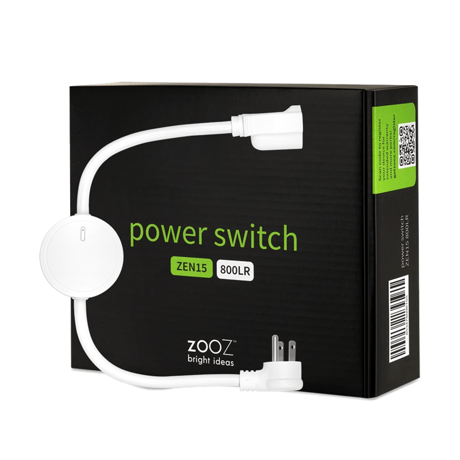
Power Switch
ZEN15 800LR
Binary Switch DT
HW: 20 FW: 02.00
EFR32ZG23A
7.18.4
0x027A (634)
N/A
0x0101 (257)
ZC14-24010387
2024-01-26 09:37:05
N/A
Enhanced End Node 232
Always On End Node
The Zooz Power Switch is a perfect Z-Wave® solution for on/off control of heavy duty appliances.


20 - Overload Protection
Overload protection will turn the ZEN15's relay off once current exceeds 16.5A for over 5 seconds when this setting is enabled. We DO NOT recommend changing this parameter's value as it may result in device damage and malfunction.Size: 1 byte
Default: 1
Minimum: 0
Maximum: 1
Possible values
| From | To | Desription |
|---|---|---|
| 0 | 0 | Disabled |
| 1 | 1 | Enabled (default) |
21 - On/Off Status Recovery After Power Failure
Choose the recovery state for your Power Switch if power outage occurs.Size: 1 byte
Default: 0
Minimum: 0
Maximum: 2
Possible values
| From | To | Desription |
|---|---|---|
| 0 | 0 | Power Switch remembers the status prior to power outage and turns back to it (default) |
| 1 | 1 | Power Switch automatically turns ON once power is restored (it does not remember the status prior to power outage) |
| 2 | 2 | Power Switch automatically turns OFF once power is restored (it does not remember the status prior to power outage) |
24 - On/Off Status Change Notifications
Your Power Switch will automatically send a notification to the controller and other associated devices if its status changes from on to off or the other way round. Choose when you want it to send the report.Size: 1 byte
Default: 1
Minimum: 0
Maximum: 2
Possible values
| From | To | Desription |
|---|---|---|
| 0 | 0 | disabled (it will not send status change notifications) |
| 1 | 1 | sends basic set notification if status is changed manually or remotely via Z-Wave (default) |
| 2 | 2 | sends basic set notification ONLY if status is changed manually by pressing and releasing the Z-Wave button on the Power Switch |
27 - LED Indicator Mode
You can choose how the LED indicator displays power consumption on the Power Switch and when it's on or off.Size: 1 byte
Default: 1
Minimum: 0
Maximum: 3
Possible values
| From | To | Desription |
|---|---|---|
| 0 | 0 | LED indicator will display power consumption whenever the device is plugged in (LED stays on at all times, even if the switch is off) |
| 1 | 1 | LED indicator will display power consumption whenever the device is ON in and will turn off when the switch is OFF (default) |
| 2 | 2 | LED indicator will display the level of power consumption for 5 seconds only whenever the device is turned on or off (LED indicator will stay off for most of the time) |
| 3 | 3 | LED indicator is OFF at all times except for inclusion, exclusion, and Z-Wave range test. |
30 - Manual Control
Choose if you want to use the physical button on the Power Switch to turn the outlet on or off manually or if you want to disable this function. If this parameter is set to 0 (disabled), you will only be able to turn the outlet on or off remotely using your Z-Wave gateway controller.Size: 1 byte
Default: 1
Minimum: 0
Maximum: 1
Possible values
| From | To | Desription |
|---|---|---|
| 0 | 0 | manual control disabled |
| 1 | 1 | manual control enabled(default) |
31 - Enable Z-Wave turn ON
Enable Z-Wave turn ONSize: 1 byte
Default: 1
Minimum: 0
Maximum: 1
Possible values
| From | To | Desription |
|---|---|---|
| 0 | 0 | Disable |
| 1 | 1 | Enable |
32 - Enable Z-Wave turn OFF
Enable Z-Wave turn OFFSize: 1 byte
Default: 1
Minimum: 0
Maximum: 1
Possible values
| From | To | Desription |
|---|---|---|
| 0 | 0 | Disable |
| 1 | 1 | Enable |
33 - Enable Automatic turn ON
Enable Automatic turn ONSize: 1 byte
Default: 0
Minimum: 0
Maximum: 99
Possible values
| From | To | Desription |
|---|---|---|
| 0 | 0 | 0 |
34 - Enable Automatic turn OFF
Enable Automatic turn OFFSize: 1 byte
Default: 0
Minimum: 0
Maximum: 99
Possible values
| From | To | Desription |
|---|---|---|
| 0 | 0 | 0 |
35 - Delay Turn-On of after power outage
Delay Turn-On of after power outageSize: 2 bytes
Default: 0
Minimum: 0
Maximum: 600
Possible values
| From | To | Desription |
|---|---|---|
| 0 | 600 |
151 - Power Wattage Report Value Threshold
Choose how you want your Power Switch to report power consumption to your hub. The number entered as value corresponds to the number of Watts the appliance needs to go over for the change to be reported. So if 50 Watts are entered by default, the Power Switch willSize: 2 bytes
Default: 50
Minimum: 0
Maximum: 65535
Possible values
| From | To | Desription |
|---|---|---|
| 0 | 0 | disabled (the Switch will not report power consumption based on this setting) |
| 1 | 65535 | Watts |
152 - Power Report Percentage Threshold
Choose how you want your Power Switch to report power use to your hub and associated devices by percentage rate. The number entered as value corresponds to the percentage in power usage change the appliance needs to go over for the event to be reported. So if 10% is entered by default, the Power Switch will report any change in power use over 10% (whether it's at least 10% more or 10% less power use compared to previous report).Size: 1 byte
Default: 10
Minimum: 0
Maximum: 255
Possible values
| From | To | Desription |
|---|---|---|
| 0 | 0 | disabled (it will not report power consumption based on percentage change) |
| 1 | 255 | percent |
171 - Power Report Frequency
Choose how often you want your Power Switch to report power consumption (W) to your controller and associated device. The number entered as value corresponds to the number of seconds. So if 30 is entered by default, the Power Switch will report power consumption every 30 seconds.Size: 4 bytes
Default: 30
Minimum: 5
Maximum: 2678400
Possible values
| From | To | Desription |
|---|---|---|
| 0 | 0 | disabled (it will not report power consumption) |
| 5 | 2678400 | seconds |
172 - Energy Report Frequency
Choose how often you want your Power Switch to report energy usage (kWh) to your controller and associated device. The number entered as value corresponds to the number of seconds. So if 300 is entered by default, the Power Switch will report energy usage every 300 seconds (5 minutes).Size: 4 bytes
Default: 300
Minimum: 5
Maximum: 2678400
Possible values
| From | To | Desription |
|---|---|---|
| 0 | 0 | disabled (it will not report energy usage) |
| 5 | 2678400 | seconds |
173 - Voltage Report Frequency
Choose how often you want your Power Switch to report voltage (V) to your controller and associated device. The number entered as value corresponds to the number of seconds.Size: 4 bytes
Default: 300
Minimum: 5
Maximum: 2678400
Possible values
| From | To | Desription |
|---|---|---|
| 0 | 0 | disabled (it will not report voltage levels) |
| 1 | 2678400 | seconds |
174 - Electricity Report Frequency
Choose how often you want your Power Switch to report levels of electrical current (A) to your controller and associated device. The number entered as value corresponds to the number of seconds.Size: 4 bytes
Default: 300
Minimum: 5
Maximum: 2678400
Possible values
| From | To | Desription |
|---|---|---|
| 0 | 0 | disabled (it will not report electrical current) |
| 1 | 2678400 | seconds |
Add the Switch into the Z-Wave network (Manual Inclusion): a.Power on your Switch, set your Z-Wave controller into add/inclusion mode. b.Triple click the Z-button, RGB LED indicator should blink fast in blue. c.Smart Switch should be recognized and included into the Z-Wave network.
Remove Switch from a Z-Wave network (Manual Exclusion): a.Power on your Switch, and let the Z-Wave primary controller into remove/exclusion mode. b.Triple click the Z button. c.RGB LED indicator will blink orange till the removing process is completed, than the indicator will keep orange for 3 seconds.
Reset Switch to factory default: Press and hold the Z button for more than 20 seconds. If holding time more than 20seconds, the RGB LED indicator will keep yellow for 2 seconds, which means resetting is complete. Note: Please use this procedure only when the network primary controller is missing or otherwise inoperable.
Add the Switch into the Z-Wave network via Smart Start (SmartStart Inclusion): a. Add Switch DSK into the primary controller Smart Start Provisioning List (If you don’t know how to do this, refer to its manual, DSK usually print on the main body).
| Type | Value(s) |
|---|