VENTURE INDUSTRIES SP. Z O. O.
eVI EC
WISE-EC-01
Multilevel Switch DT
HW: 01 FW: 08.00
EFR32ZG23B
7.20.2
0x010F (271)
N/A
0x2701 (9985)
ZC14-24020412
2024-02-27 12:09:08
N/A
Enhanced End Node 232
Always On End Node
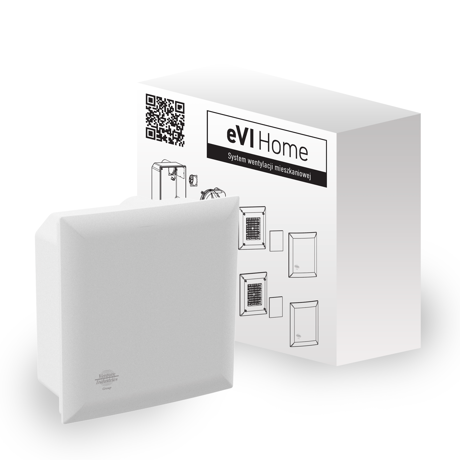
eVI EC WISE is a Z-Wave® device that allows control the air flow through the fan.


1 - Device status memory
The parameter determines the status after a power failure.Size: 1 byte
Default: 1
Minimum: 0
Maximum: 1
Possible values
| From | To | Desription |
|---|---|---|
| 0 | 0 | Device resets fan airflow to 34m³/h |
| 1 | 1 | The parameter defines the state after power off. |
154 - Allowing the fan to turn off completely
This parameter determines what state the device will be in when the OFF or set 0 command is sent to the multi-level switch.Size: 1 byte
Default: 0
Minimum: 0
Maximum: 1
Possible values
| From | To | Desription |
|---|---|---|
| 0 | 0 | Sending OFF command set fan airflow to 20 m³/h |
| 1 | 1 | Sending the OFF command completely shuts down the device |
155 - Auto mode
This parameter determines whether the device is to work in auto mode.In auto mode fan speed is relative to humidity.Size: 1 byte
Default: 0
Minimum: 0
Maximum: 1
Possible values
| From | To | Desription |
|---|---|---|
| 0 | 0 | device works in manual mode |
| 1 | 1 | device works in auto mode |
1. Set the main controller in (Security/non-Security Mode) add mode (see the controller’s manual). 2. Set the device in learning mode by quick triple-clicking the button on the PCB . The LED indicator blinks yellow. 3. If you are adding in Security S2 Authenticated, input the underlined part of the DSK (label on the device). 4. After succesfull adding to the Z-Wave network, the device''s LED indicator will: Blink single green light, when added to non-secure, S0, S2 Unauthenticated level or blink with a single magenta light, when added to Security S2 Authenticated. 5. If the device is not succesfully added to the network, there will be a single red LED indicator blink.
1. Set the main controller into remove mode (see the controller’s manual). 2. Triple click the button on the PCB (Fig. 1). The LED indicator will blink continuously. 3. Wait for the removal process to complete. 4. After succesfull removal from the Z-Wave network, on the device there will be a single red LED indicator blink.
1. To restore the device to the factory settings, hold down the button located on the PCB for at least 10 seconds (Fig. 1). 2. Wait until the LED indicator lights up yellow, release the button. 3. Press the button again. 4. Successful device reset will be confirmed by greed LED indicator light. 5. The LED indicator will light up red, when the device is removed from the Z-Wave network.
4.1: Adding manually page 8 "If you are adding in Security S2 Authenticated, input the underlined part of the DSK (label on the device)."
| Sensor type |
|---|
| Air Temperature |
| Humidity |