Zooz
Remote Switch
ZEN34
Central Scene DT
HW: 02 FW: 02.00
EFR32ZG23A
7.19.3
0x027A (634)
0x7000 (28672)
0xF001 (61441)
ZC14-24110478
2024-11-01 09:23:12
N/A
Enhanced End Node 232
Reporting Sleeping End Node
Yes
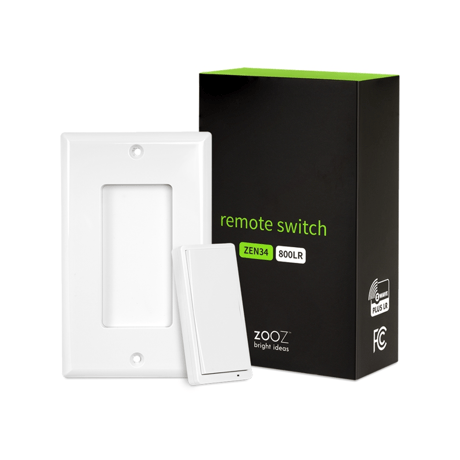
Control your connected devices and activate scenes from this handy Remote Switch.


1 - Led Indicator Mode
Choose the LED indicator mode for your Remote Switch.Size: 1 byte
Default: 1
Minimum: 0
Maximum: 3
Possible values
| From | To | Desription |
|---|---|---|
| 0 | 0 | LED always off |
| 1 | 1 | LED on when button is pressed to indicate scene activation or association command (LED blinks once for single tap, twice for double tap, etc.) |
| 2 | 2 | LED always on in color specified under parameter 2 |
| 3 | 3 | LED always on in color specified under parameter 3 |
2 - LED indicator color for the upper paddle
Choose the LED indicator color for the upper paddle remote control triggers.Size: 1 byte
Default: 1
Minimum: 0
Maximum: 6
Possible values
| From | To | Desription |
|---|---|---|
| 0 | 0 | white |
| 1 | 1 | blue (default) |
| 2 | 2 | green |
| 3 | 3 | red |
| 4 | 4 | magenta |
| 5 | 5 | yellow |
| 6 | 6 | cyan |
3 - LED indicator color for the lower paddle
Choose the LED indicator color for the lower paddle remote control triggers.Size: 1 byte
Default: 0
Minimum: 0
Maximum: 6
Possible values
| From | To | Desription |
|---|---|---|
| 0 | 0 | white (default) |
| 1 | 1 | blue |
| 2 | 2 | green |
| 3 | 3 | red |
| 4 | 4 | magenta |
| 5 | 5 | yellow |
| 6 | 6 | cyan |
4 - Wake up time
Set to keep wake up 30sSize: 1 byte
Default: 0
Minimum: 0
Maximum: 1
Possible values
| From | To | Desription |
|---|---|---|
| 0 | 0 | 0 |
5 - Rate for multilevel start
Rate for multilevel set association groupSize: 1 byte
Default: 0
Minimum: 0
Maximum: 99
Possible values
| From | To | Desription |
|---|---|---|
| 0 | 0 | 0 |
Put your Z-Wave® hub into inclusion mode and click the upper paddle 6 times quickly. The LED indicator will blink blue during the process and light up green once added successfully. It will light up red if failed.
1. Bring the Remote Switch within direct range of your Z-Wave® gateway (hub). 2. Put the Z-Wave® hub into exclusion mode (not sure how to do that? [email protected]). 3. Click the lower paddle 6 times very quickly 4. Your hub will confirm exclusion and the device will disappear from your controller''s device list.
You will need to wake the Remote Switch up when changing any advanced settings or assigning any new scenes or actions to it. Click the upper paddle 7 times as quickly as possible to wake the device up. The LED indicator will stay on solid blue during wake-up and will turn off when the device turns the Z-Wave® radio off again.
When your network’s primary controller is missing or otherwise inoperable, you may need to reset the device to factory settings manually. To complete the process, ensure the device is powered, then tap-tap-tap''n''hold the lower paddle (this is the bottom paddle closer to the LED indicator) until the LED indicator starts blinking red. The LED indicator will blink 10 times and then stay solid red for 2 seconds to indicate a successful reset. NOTE: All previously recorded activity and custom settings will be erased from the device’s memory.
If you’re using an S2 hub, it may ask you to scan the QR code or enter the DSK PIN printed on the back sticker to complete secure inclusion.
| Type | Value(s) |
|---|