Nice S.p.A
Double Dimmer-Control
FGD-223
Multilevel Switch DT
HW: 03 FW: 08.00
EFR32ZG23B
7.23.1
0x010F (271)
0x0103 (259)
0x1000 (4096)
ZC14-25070531
2025-07-11 11:59:35
N/A
Enhanced End Node 232
Always On End Node
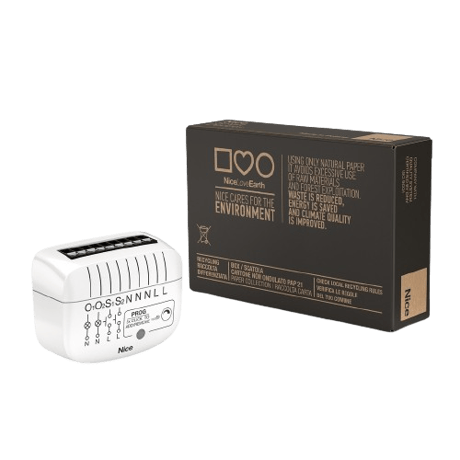
DoubleDimmer-Control enables control of connected devices either through the Z-Wave Plus® network or a wall switch. It enables switching or dimming two load circuits independently or in parallel.


1 - P1
""Size: 1 byte
Default: 1
Minimum: 0
Maximum: 1
Possible values
| From | To | Desription |
|---|---|---|
| 0 | 0 | 0 |
20 - P20
""Size: 1 byte
Default: 1
Minimum: 0
Maximum: 7
Possible values
| From | To | Desription |
|---|---|---|
| 0 | 0 | 0 |
24 - P24
""Size: 1 byte
Default: 0
Minimum: 0
Maximum: 1
Possible values
| From | To | Desription |
|---|---|---|
| 0 | 0 | 0 |
40 - P40
""Size: 1 byte
Default: 15
Minimum: 0
Maximum: 15
Possible values
| From | To | Desription |
|---|---|---|
| 0 | 0 | 0 |
41 - P41
""Size: 1 byte
Default: 15
Minimum: 0
Maximum: 15
Possible values
| From | To | Desription |
|---|---|---|
| 0 | 0 | 0 |
154 - P154
""Size: 2 bytes
Default: 0
Minimum: 0
Maximum: 43200
Possible values
| From | To | Desription |
|---|---|---|
| 0 | 0 | 0 |
155 - P155
""Size: 2 bytes
Default: 0
Minimum: 0
Maximum: 43200
Possible values
| From | To | Desription |
|---|---|---|
| 0 | 0 | 0 |
156 - P156
""Size: 1 byte
Default: 20
Minimum: 1
Maximum: 98
Possible values
| From | To | Desription |
|---|---|---|
| 0 | 0 | 0 |
157 - P157
""Size: 1 byte
Default: 20
Minimum: 1
Maximum: 98
Possible values
| From | To | Desription |
|---|---|---|
| 0 | 0 | 0 |
158 - P158
""Size: 1 byte
Default: 75
Minimum: 2
Maximum: 99
Possible values
| From | To | Desription |
|---|---|---|
| 0 | 0 | 0 |
159 - P159
""Size: 1 byte
Default: 75
Minimum: 2
Maximum: 99
Possible values
| From | To | Desription |
|---|---|---|
| 0 | 0 | 0 |
160 - P160
""Size: 1 byte
Default: 0
Minimum: 0
Maximum: 1
Possible values
| From | To | Desription |
|---|---|---|
| 0 | 0 | 0 |
161 - P161
""Size: 1 byte
Default: 0
Minimum: 0
Maximum: 1
Possible values
| From | To | Desription |
|---|---|---|
| 0 | 0 | 0 |
162 - P162
""Size: 1 byte
Default: 0
Minimum: 0
Maximum: 1
Possible values
| From | To | Desription |
|---|---|---|
| 0 | 0 | 0 |
163 - P163
""Size: 1 byte
Default: 0
Minimum: 0
Maximum: 1
Possible values
| From | To | Desription |
|---|---|---|
| 0 | 0 | 0 |
164 - P164
""Size: 1 byte
Default: 99
Minimum: 0
Maximum: 255
Possible values
| From | To | Desription |
|---|---|---|
| 0 | 0 | 0 |
165 - P165
""Size: 1 byte
Default: 99
Minimum: 0
Maximum: 255
Possible values
| From | To | Desription |
|---|---|---|
| 0 | 0 | 0 |
166 - P166
""Size: 1 byte
Default: 5
Minimum: 0
Maximum: 10
Possible values
| From | To | Desription |
|---|---|---|
| 0 | 0 | 0 |
167 - P167
""Size: 1 byte
Default: 2
Minimum: 0
Maximum: 10
Possible values
| From | To | Desription |
|---|---|---|
| 0 | 0 | 0 |
200 - P200
""Size: 1 byte
Default: 0
Minimum: 0
Maximum: 10
Possible values
| From | To | Desription |
|---|---|---|
| 0 | 0 | 0 |
201 - P201
""Size: 2 bytes
Default: 0
Minimum: 0
Maximum: 260
Possible values
| From | To | Desription |
|---|---|---|
| 0 | 0 | 0 |
202 - P202
""Size: 1 byte
Default: 0
Minimum: 0
Maximum: 1
Possible values
| From | To | Desription |
|---|---|---|
| 0 | 0 | 0 |
Adding (Inclusion) - The Z-Wave device learning mode enables adding the device to the existing Z-Wave network. 5.1 - Adding the device to the Z-Wave network manually 1. Place DoubleDimmer-Control within the direct range of your Z-Wave hub. 1. Set the main hub to add mode (secure or non-secure). For more information, see the hub manual. 2. Quickly press the S1 or S2 switch, or the PROG button, three times. 3. If you''re adding the device in the Security S2 Authenticated mode, input the PIN Code labelled on the device. The PIN Code is also an underlined part of the device specific key (DSK) labelled at the bottom of the box. 4. Wait for the adding process to finish. 5. Successful adding is confirmed by the Z-Wave hub message and the device LED indicator:
Removing (Exclusion) - The Z-Wave device remove mode enables removing the device from the existing Z-Wave network. To remove the device from the Z-Wave network: 1. Place DoubleDimmer-Control within the direct range of your Z-Wave hub. 2. Set the main hub to the remove mode. For more information, see the hub manual. 3. Quickly press S1 or S2 switch, or the PROG button, three times. Note This function for S1 and S2 switches is available for 10 minutes after powering the device. 4. Wait for the removing process to end. 5. Successful removal is confirmed by the Z-Wave hub message and the red LED indicator.
6.2 - Resetting DoubleDimmer-Control 1. Switch off the mains voltage (disable the fuse). 2. Remove DoubleDimmer-Control from the wall switch box. 3. Switch on the mains voltage. 4. Press and hold the PROG-button to enter the menu. 5. Wait for the visual LED indicator to glow yellow (Position 1). 6. Quickly release and click the PROG-button again. 7. After a few seconds, the device restarts, which is indicated by the red LED indicator.
If you''re adding the device in the Security S2 Authenticated mode, input the PIN Code labelled on the device. The PIN Code is also an underlined part of the device specific key (DSK) labelled at the bottom of the box.
| Group | Type |
|---|---|
| Power Management |
|
| System | HW status: System hardware failure (manufacturer proprietary failure code provided) |