Nice S.p.A
RGBW-Control
FGRGBW-442
Multilevel Switch - Color Tunable Multilevel
HW: 02 FW: 05.01:05.01:01.00
ZM5101A-CME3
6.81.03
0x010F (271)
0x0902 (2306)
0x2000 (8192)
ZC10-25070011
2025-07-01 14:44:44
N/A
Enhanced End Node 232
Always On Slave
Universal remote control for RGB/RGBW and other LEDs.
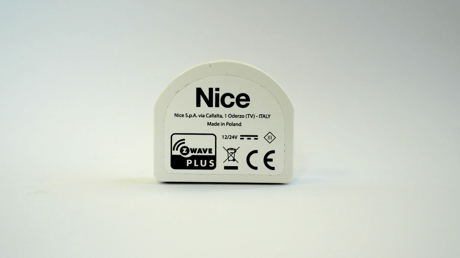
To add the device to the Z-Wave network manually: 1. Power the device. 2. Set the main hub in the (Security/non-Security Mode) add mode. For more information, see the hub manual. 3. Quickly, three times click the service button. 4. If you are adding in Security S2 Authenticated, input the underlined part of the DSK, which is labelled on the box. 5. LED starts blinking yellow, wait for the adding process to end. 6. Adding result is confirmed with the Z-Wave hub message and the LED color: • Green – successful (non-secure, S0, S2 Unauthenticated) • Magenta – successful (Security S2 Authenticated) • Red – not successful
To remove the device from the Z-Wave network: 1. Power the device. 2. Set the main hub into the remove mode. For more information, see the hub manual. 3. Quickly, three times click the service button. 4. LED starts blinking yellow, wait for the removing process to end. Successful removing is confirmed with the Z-Wave hub message and red LED color.
Reset procedure enables you to restore the device back to its factory settings, which means all information about the Z-Wave hub and user configuration are deleted. Resetting to factory defaults doesn''t reset energy consumption memory. 1. Press and hold the service button to enter the menu. 2. Release service button when the device glows yellow. 3. Quickly click the service button to confirm.4. After a few seconds the device is restarted, which is signalled with the red color.
In chapter 5.1: 4. If you are adding in Security S2 Authenticated, input the underlined part of the DSK, which is labelled on the box.